Showing posts with label Google Calendar. Show all posts

Tuesday, 28 June 2011

Reminder from google calendars

If the google calendar for yourself, just to write events, we will receive email reminders from google calendar on the schedule that we make. Arround 10 minutes before due date, we get an email from google calendar.
So, don't worry if you forget your schedule. :D


reminder from google calendar
Read More....

Tuesday, 14 June 2011

How to embed google calendar into website/blog?

How to embed google calendar into website/blog?

Login to https://calendar.google.com
or https://www.google.com/accounts/login

See calendar icon, click settings
On calendar setting:
- general
- calendars
- mobile setup
- labs
Fill it, then save.
Began to create / fill calendar
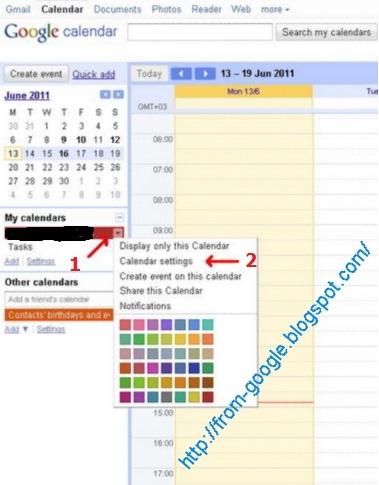
See left side: My calendars >> click (1) >> click calendar settings (2)


To embed this calendar: Click Customise the colour, size and other options

Adjust the width and height to your blog.
Preview this calendar:


Copy and paste the HTML code into your website or blog.

To share:
1. See picture 1 above, click share this calendar.
2. Check the make this calendar public.
3. If you want to share with specific people, enter email address.
4. Save.
Read More....

Tuesday, 7 June 2011

Introducing appointment slots in Google Calendar

How to make an appointment slots in Google Calendar?

Creating appointment slots

To get started, set up blocks of time you’d like to offer as appointment slots. Simply click anywhere on your calendar and then on "Appointment slots.” From there, create a single block of time or automatically split a larger block of time into smaller appointment slots.


Every Google Calendar has its own personal appointments sign up page; you can embed it on your website or give the URL directly to friends and clients. You can find the URL for your appointment page at the top of the set-up page, which you can access via the Edit details link.


Signing up for an appointment slot

When someone visits your sign up page, their calendar is overlaid for convenience and they can sign up directly for any available appointment slot. When they sign up, Google Calendar conveniently creates a new shared event on both of your calendars.


Now, with appointment slots in Google Calendar, any individual or business can manage appointment availability online 24/7.

More detail visit here.
[ http://gmailblog.blogspot.com/2011/06/introducing-appointment-slots-in-google.html ]
Read More....

Thursday, 2 June 2011

Change Google Calendar’s default meeting length and more print options

Google adding two features that make it easier to customize Google Calendar. First, you can now change your default event length from the standard 30 minute slot. If you frequently create 15 minute meetings, for example, you can now make 15 minutes the default length for all your events. This way, you don’t need to click into the event page to change the duration every time.


You can change the default length of your events from the Calendar settings page. Next to the “Default meeting length” option, choose the length you’d like from the drop-down menu on the right. From there, you can also enable “Speedy meetings,” which automatically shortens events that are 30 minutes or longer to allow you to prep for your next meeting or get to your next appointment if you have a packed schedule.


Second, for those of you who still prefer paper and print your calendar, you can now select a specific date range in the print dialog box. Google Calendar will automatically format your printout for the date range you choose.


[http://gmailblog.blogspot.com/2011/06/change-google-calendars-default-meeting.html]

Read previous article Color code your Google Calendar events.
Read More....

Tuesday, 10 May 2011

Color code your Google Calendar events

Color code your Google Calendar events

If your calendar ends up full of many different types of events (film nights, lunch dates, and doctor appointments, for example), there’s now an easy way to categorize them using colors.


Just click on an event, then click the colored square in the top left of the pop-up bubble and pick a new color. If you don’t see this option quite yet, hang tight — it'll be there for everyone within the next day or so.


Only you and anyone else you’ve given edit access to your calendar will be able to see the colors you choose. This has been a feature request from many of you for some time, and we hope you enjoy using it as much as we do.

http://gmailblog.blogspot.com/2011/05/color-code-your-google-calendar-events.html

***

To get started please visit https://www.google.com/calendar/
Read More....